MEMBER BENEFITS
One of the benefits of being a BPCA Servicing member is having your business included on our website’s Find a pest controller tool.
This is our online database which allows the public to search for trusted pest management companies in BPCA membership.
When a profile first appears on this tool, it is pulled directly from our database and is quite basic.
You can then edit your organisation profile, to help it stand out and generate more leads. A professional looking profile is more likely to attract customers.
TOP TIP: Save as you go. You don't want to get halfway through, your internet crashes and you lose your hard work!
Step-by-step guide
1. Log in to the member area of the BPCA website at bpca.org.uk/member-area or click on the MyBPCA button at the top of the website.
2. If you're on desktop, on the left-hand side of the screen, select ‘Find a Pest Controller profile’. On mobile, just scroll down:
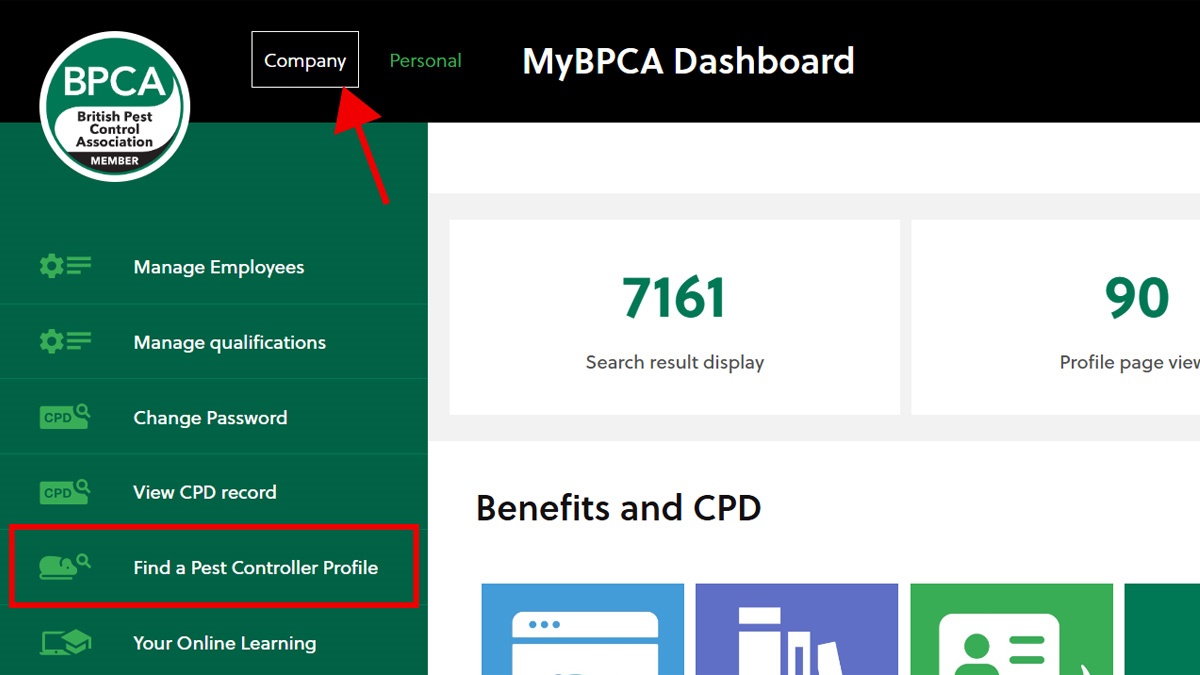
3. This will take you to the editing tools for your Find a pest controller profile.
It will show your organisation details, such as address and contact telephone numbers.
Some details are automatically populated from the information we have for your business in our system. If you need to change these, it's quite simple. Just click inside each text box and amend as necessary.
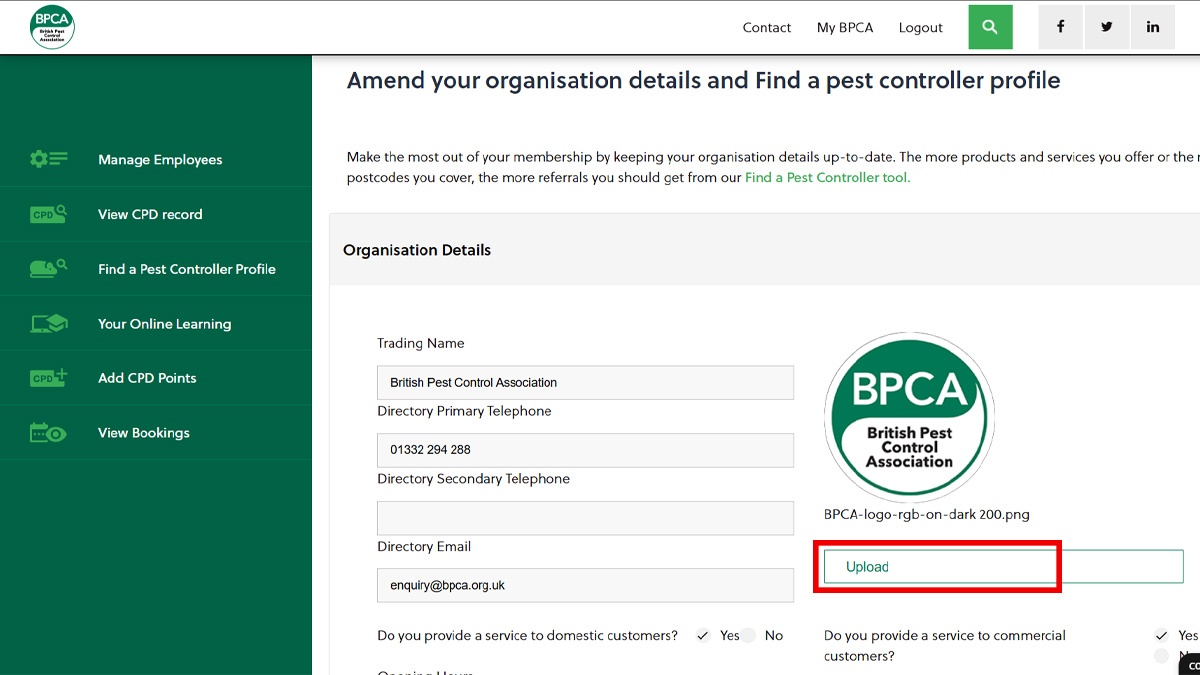
4. As you can see in the image above, the next step is to include a logo. Your business logo is your brand and potential customers are more likely to click on a profile with a logo.
This must be 172 x 172 pixels and have a transparent background.
Click 'Upload'. Select your logo from your files (below) and click open.

5. Next step is to give your profile more detail. First, select whether or not your company provides domestic and/or commercial services (circled below).
Then, write a description. This boosts your profile’s personality and gives potential customers an idea of what your business ethos is. A good idea is to take copy from your website. See our example below:
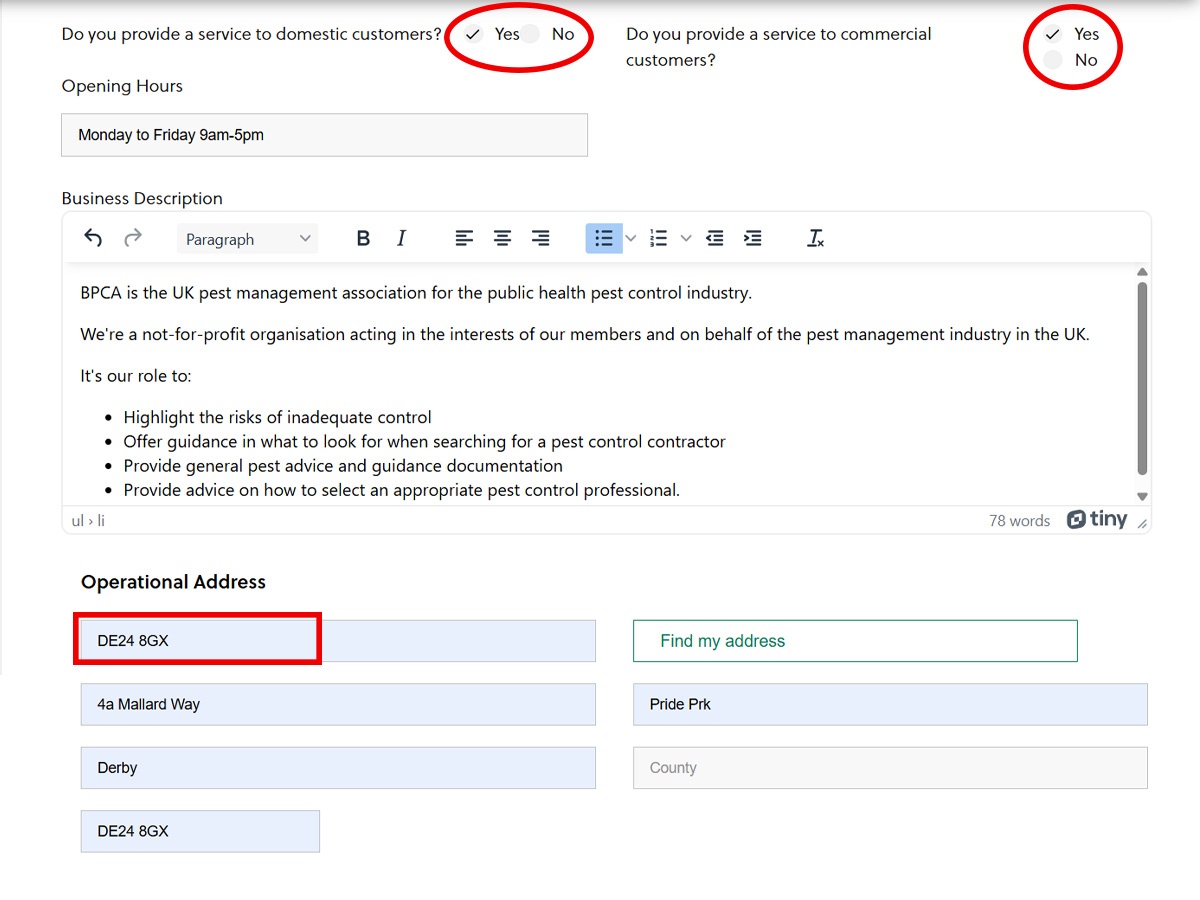
6. Now choose your operational address. This is where your business is based - your HQ. It will help customers in your immediate area find you.
Once you've done that, click 'Save'.
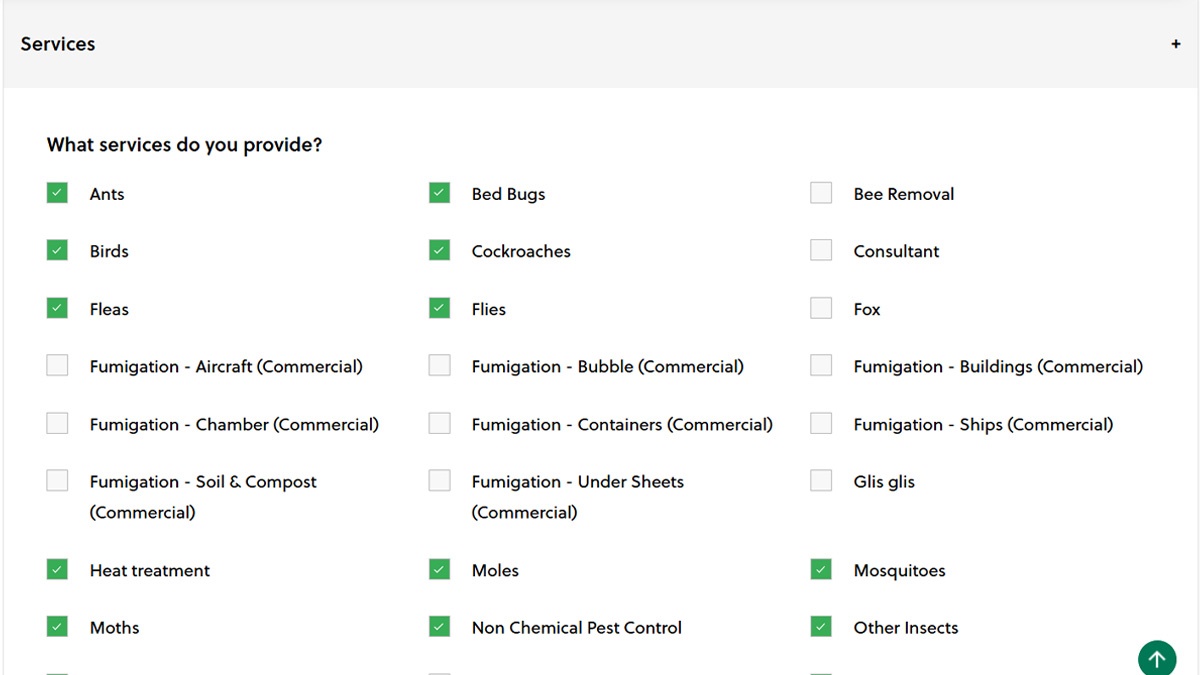
7. Now comes the very important bit! You need to input what services your business provides.
This will tell potential customers what pests you will deal with or areas of pest management you specialise in.
This is really simple: just check each box next to the pest type and when you're done, scroll down and click 'Save'.
8. Lastly, you need to make sure that every postcode area you cover is listed.
A common mistake is to list your head office address postcode and no others.
For example, if you are based in the DE1 postcode area but also operate in the DE5 area, you must list both.
To add multiple postcode areas, select the 'locality' drop down in the 'Postcodes covered' area:
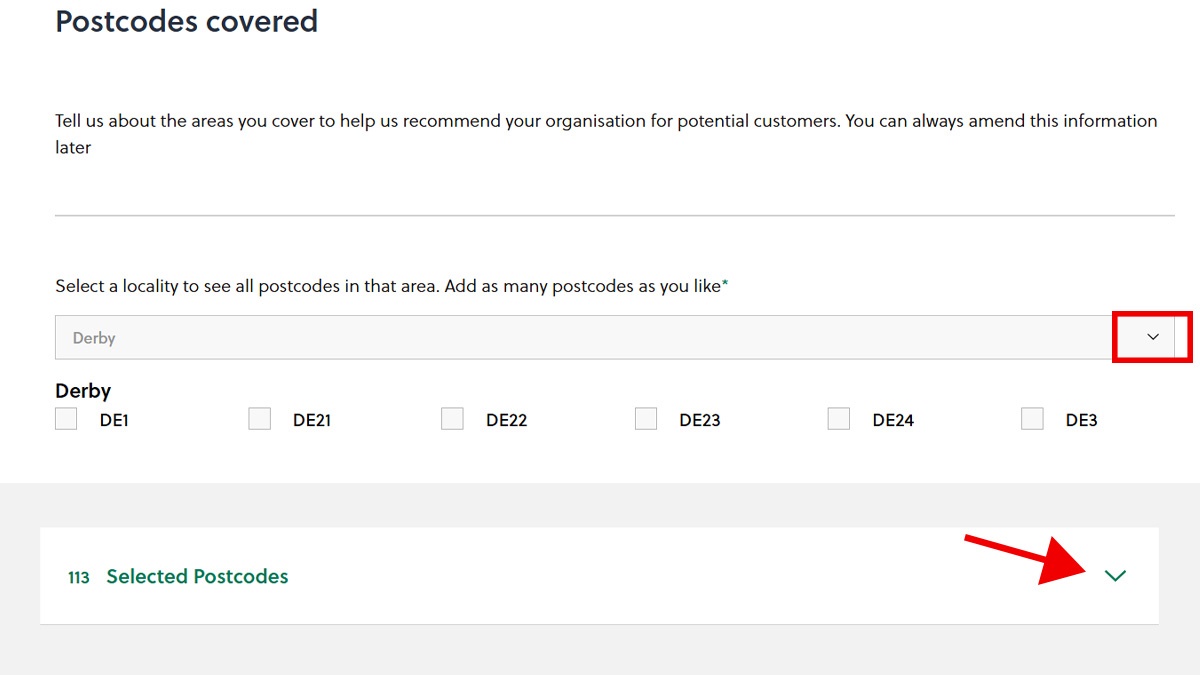
Once you've selected a locality, you will see all the postcodes available in that area. Select the postcodes that apply to you. You can do this with as many localities and postcodes as needed, providing you operate in those areas.
9. You can see all your selected postcodes once finished (see image above). If you need to take a postcode off the list, simply click on the small X beneath it and it will be removed.
10. When you’ve finished, remember to save before you close or log out.
Got any suggestions?
Are there any other services you would like to see us cover in a step-by-step guide? Get in touch.
hello@bpca.org.uk